Video Call Smart Doorbell Troubleshooting: Fix Common Issues Easily
Published: 6 Feb 2026
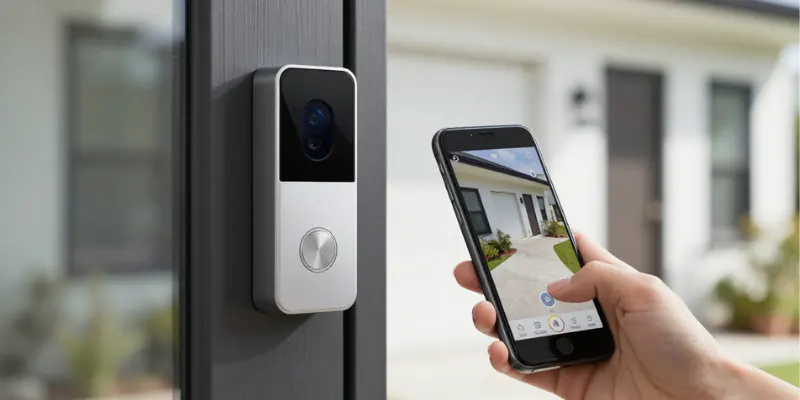
A video call smart doorbell adds safety and convenience to your home, but small issues can interrupt its performance. You may face problems like missed video calls, poor sound, or an app that does not respond. These situations can be frustrating, especially when you depend on the device for daily security.
This video call smart doorbell troubleshooting guide explains common problems in simple words and helps you fix them step by step, without stress.
Smart Doorbell Troubleshooting
Before fixing advanced issues, it is important to start with simple checks. Most video call smart doorbell problems come from power or Wi-Fi issues, not the device itself.
Check the power supply and wiring
Make sure the doorbell has enough power to operate. A low battery can stop video calls or turn the device off suddenly. For wired models, loose or damaged wires can interrupt power flow.
Confirm Wi-Fi connection strength
A weak Wi-Fi signal can cause delayed video, dropped calls, or an offline status. Distance from the router, thick walls, or metal doors can reduce signal strength. Always test Wi-Fi stability near the doorbell.
Taking care of these basic steps first makes troubleshooting faster and avoids unnecessary resets or replacements.
Video Call Issues on Smart Doorbells
Video call problems are among the most common smart doorbell complaints. These issues usually relate to app settings, internet stability, or device permissions rather than hardware faults.
Video call not connecting
When a video call fails to connect, the app may not have proper permissions. Make sure you are logged into the correct account, and the app has access to the camera and microphone. An outdated app version can also block video calls.
One-way audio or no sound
Audio issues often happen due to muted settings or low phone volume. Check both the doorbell and phone sound settings carefully. Background noise and weak internet can also affect clear two-way communication.
Fixing these video call issues early improves response time and restores smooth communication at your door.
Camera and Video Quality Problems
Camera issues can reduce the security value of your smart doorbell. Below are common problems and their fixes, explained in a simple way.
- Problem: Blurry or lagging video feed
Fix: Clean the camera lens gently with a soft cloth. Check your internet speed near the doorbell, as slow Wi-Fi can cause delays. Updating the app often improves video stability and clarity. - Problem: Night vision is not working properly
Fix: Make sure there are no bright lights or shiny objects close to the camera. These can reflect infrared light and block night vision. Adjust the doorbell position if needed.
Solving these camera problems helps you see visitors clearly, day or night, without interruptions.
App and Notification Problems
Smart doorbell apps control most features, so app or notification issues can disrupt your experience. Here are common problems and their fixes.
- Problem: Smart doorbell app not responding
Fix: Restart the app and clear its cache. Make sure the app is updated to the latest version. If it still crashes, try reinstalling the app on your phone. - Problem: Motion alerts not showing
Fix: Check notification permissions on your phone. Adjust the motion sensitivity settings in the app to ensure alerts are triggered correctly. Make sure your phone is connected to the internet.
Fixing app and notification issues ensures you never miss a visitor or alert.
Connectivity and Cloud Issues
Sometimes the doorbell works fine locally but faces connection or cloud problems. These issues can stop live video, alerts, or video history from working.
- Problem: Doorbell goes offline frequently
Fix: Restart your Wi-Fi router and ensure the doorbell is within strong signal range. Check for any power-saving modes on your router or device that may disconnect the doorbell. - Problem: Video history not saving
Fix: Verify your cloud subscription or storage settings in the app. Make sure the app is syncing properly and has enough storage available for video clips.
Resolving these connectivity problems helps maintain continuous monitoring and reliable video storage.
When to Reset or Contact Support
If other troubleshooting steps don’t fix your smart doorbell, a reset or professional help may be needed. These should be your last steps, not the first.
- Problem: Doorbell keeps malfunctioning
Fix: Perform a factory reset following the manufacturer’s instructions. This clears temporary glitches but keep in mind it will erase all custom settings. - Problem: Unable to resolve issues on your own
Fix: Contact customer support with your doorbell model and purchase information. They can guide you through advanced troubleshooting or warranty options.
Using these steps carefully ensures that your doorbell works reliably without causing further issues.
Frequently Asked Questions
Here are some common questions about video call smart doorbell troubleshooting, with clear answers to help you fix issues quickly.
Q: Why is my smart doorbell not sending notifications?
A: This usually happens because the app does not have notification permissions. Check your phone settings and app settings, and make sure your internet connection is stable.
Q: How can I improve video quality on my doorbell?
A: Clean the camera lens, ensure strong Wi-Fi, and update the app. Proper lighting and correct positioning also help improve clarity.
Q: What should I do if the video call is one-way?
A: Check that your phone and doorbell volumes are on, the microphone is not blocked, and the app has permission to access audio. Restarting the app often fixes this issue.
Conclusion
Troubleshooting a video call smart doorbell is often easier than it seems. Most problems come from power issues, weak Wi-Fi, app settings, or simple camera adjustments. By following these step-by-step fixes, you can restore clear video, reliable notifications, and smooth two-way calls.
As an expert, I recommend checking the basics first—power, Wi-Fi, and app updates—before attempting resets. This saves time and keeps your doorbell working efficiently. Keep your device maintained and updated so you always stay connected and secure at home.



- Be Respectful
- Stay Relevant
- Stay Positive
- True Feedback
- Encourage Discussion
- Avoid Spamming
- No Fake News
- Don't Copy-Paste
- No Personal Attacks
- Be Respectful
- Stay Relevant
- Stay Positive
- True Feedback
- Encourage Discussion
- Avoid Spamming
- No Fake News
- Don't Copy-Paste
- No Personal Attacks
